Tampilkan postingan dengan label Google Webmaster Tools tutorials. Tampilkan semua postingan

Jumat, 21 Oktober 2016

How To Remove Unwanted Or Broken Links From Google Search Results

how-to-remove-bad-broken-links-from-google-search-results

After a long time I am writing a post about Google webmaster tools. Its because its important to share this information with you guys. The thing which I want to share with you is that after submitting a site to Google webmaster tools, we sometimes find some URL's which are broken and doesn't reach to a content rich page and it is bad for your site because too many broken links will lead to a spammy image of your site and that's not good for your site because it may be removed from search results for ever.

Moreover if you set 404 not found redirects it may solve the problem but it will be a temporary solution and also too many 404 not found redirects will also be considered as a spam web page. So In this post I am going to tell you how to remove unwanted and useless links of your blog from Google search results using Google webmaster tools.

How to remove useless/unwanted  urls from Google search results using webmaster tools?

Follow below steps:

1. Go to Google Webmaster Tools and Select a site which you have submitted to Google and you are getting too many broken links for it.

how-to-remove-urls-from-google-search-results

2. In the search console go to Google Index > Remove URL's.

remove unwanted urls from google search results

3. Click on Temporary hide and type the link which you want to remove from search results and click on Continue.

how-to-remove-links-from-google-search-webmaster-tools

4. Select "Temporarily hide page from search results and remove from cache" and click on submit request.

remove-links-from-google-search-webmaster-tools

This is it. I hope you found this post helpful. For more webmaster tools go HERE
Search Kewords: How to remove unwanted links from Google search results,webmaster tools tutorials for blogger,how to hide links from google search results,remove broken 404 urls from search results
Read more

Rabu, 21 September 2016

How To Show Star Ratings In Google Search Results - Blogger

how to show star ratings snnipet in blogger

Google rich snippets allow you to make your site's search results view better to get maximum visitors. And it is seen that sites with rich snippets enabled get more visitor specially sites selling products or sites about review of any ad network or site with cooking recipes. Among Google rich snippets most popular are search box in search results and star ratings widget because most of sites are able to show them for their search results but not all! other rich snippets like logo of company or organization or social profiles in search results appear only for big companies or organization.

So in this post I am going to show you how to show star ratings for all posts in Google search results.

How to add Google Rich Snippet schema for star ratings in blogger?

Step 1: Go to blogger dashboard, go to template and edit html.

how to edit blogger template

Step 2: Search for below code:

<div class='post-footer'>

You will find this code 2 times paste the below code above the second one.

how to add code in template in blogger.png

Step 3: Copy below code and paste it above the code you just searched for.

<b:if cond='data:blog.pageType == &quot;item&quot;'>
<div style='display:none;'>
<div class='vcard' id='hcard-templatoid'>
<span itemprop='description'><span itemprop='itemreviewed'><data:post.title/></span></span>
<time itemprop='dtreviewed'><data:post.timestampISO8601/></time>
Rating: <span itemprop='rating'>4.5</span>
Diposkan Oleh: <span class='fn n'>
<span class='given-name' itemprop='reviewer'><data:post.author/></span>
</span>
</div>
</div>
</b:if>

Step 4: Save your template.

Customization:

1. To change ratings change its value,  the default value is 4.5 highlighted with yellow.

2. It will automatically add author name as the reviewer but if you want to add a name by your choice replace <data:post.author/> with the name you want to see as a reviewer.


How to check Rich Snippet for star ratings is installed ?

Well, its very easy to know that you have installed rich snippet in right way so that it work. You don't need to wait for Google to show it because it may take a week. So a simple way to check it, use Google Webmaster Testing Tool. Don't know how? follow below steps.

Step 1: Go to Google Webmaster Testing Tool.

how to check google rich snippet in google webmaster tools

Step 2: Enter URL of any post and click on RUN TEST.

If you get a Review in your results like shown below in the image then your code is installed successfully and it will work as soon as Google crawl your site.

how to check rich snippets in google webmaster testing tools

Search tags: Star ratings widget for blogger, how to add rich snippets in blogger, show star ratings in google search, schema code for star ratings,How to Display Review Markup Star Rating, How to Get Star Ratings in Google Search Results, How to Use Aggregate Review Schema
Read more

Sabtu, 30 Juli 2016

How To Upgrade To Domain Without Losing Rank,shares,traffic - Blogger

how to add custom domain in blogger 101helper


Upgrading to a domain is common now a days and people usually upgrade after successful blogging. Only a few people buy domains without blogging they directly start from domains but most of people do blogging first and after earning some amount from blog, they spend this amount to upgrade their blog and it is a good step too because it improves image of a site online, people trust it more and traffic is also increased. But after upgrading to a domain most of people are confused about further steps to be taken, some of these steps are how to replace all my links in Google Search Results, How to improve traffic not lose traffic, How to maintain rank after buying a domain etc. So in this post I am going to show you how to replace all the links in Google Search Results and improve traffic and how to upgrade to a domain without losing rank and shares.


Why Do I Replace Links In Google Search Results After Buying A Domain?

Many people think that after upgrading to a domain from blogger, you need to submit your new site URL and Sitemap to Webmaster tools but its not right because it will not replace the existing blogger URLs in search results instead of it new URLs will be indexed and your site could be considered as Spam and could be penalized. So after upgrading a domain you need to replace all the existing links not index new links. It will benefit you in many ways like it will not let you lose your traffic, your rank and your visitors will also recognize that you have upgraded to a domain name. Moreover your google+ recommendations will also be transferred from your blogspot to your domain links.

How To Replace Links In Google Search Results After Buying A Domain?

STEP 1: SUBMIT NEW DOMAIN TO WEBMASTER TOOLS

Step 1: Go to Google Webmaster tools.

Step 2: Click on   Add A Property   and add your site URL

how to submit url to google webmaster tools

Step 3: Verify your site by adding the meta tag provided by Google to your blog template.

verify site in google webmaster tools

Step 4: Go to Webmaster tools > Crawl > Sitemaps and submit your new domain's sitemap.

STEP 2: LINK YOUR BLOG TO YOUR DOMAIN IN WEBMASTER TOOLS

Step 1: Open your blog(not domain) in webmaster tools which you want to link to your domain in order to replace its links with the new domain links in search results.

Step 2: On the top right of the page click on settings icon and open Change of Address.


how to replace links in google search results

Step 3: Follow the instructions mentioned on the Change of Address page.

1. Pick your new site from the list.
2. Confirm that 301-redirects work properly.
3. Check that verification methods are still present.
4. Submit the change of address request.

how to upgrade to custom domain without losing traffic

Your request will be processed soon and your blog links in Google Search Results will be soon replaced with the new domain links. Unfortunately in Bing and Yandex webmaster tools doesn't allow change of address so you need to delete the old blog and submit your new domain in webmaster tools.

How To Submit Blogger Sitemap To Yandex?

How To Submit Blogger Sitemap To Bing Webmaster Tools?

You are done successfully. Now you just need to make changes in your Robots.txt such as adding new sitemap URL.

Read How To Add Custom Robots Text In Blogger?

You can withdraw change of address anytime by clicking on Withdraw on the change of address page.


Any questions? Ask in the comments below! Share this post with others and follow us on social media for updates.

Search Tags: how to replace blog links with new domain links in SERP(google search results),how to add custom domain in blogger without losing traffic,rank and shares, webmaster tools tutorials for blogger(blogspot), how to submit new domain url in webmaster tools

Read more

Sabtu, 15 Agustus 2015

How To Fix "headline and datepublished missing and required" In Blogger

how-to-fix-structured-data-tool-errors-in-blogger-tutorial-101helper

Since Google is updating posting schema and search results so frequently, bloggers and webmasters are having trouble to cope with it. Previously Structured Data Testing Tool was detecting following errors:

(1). image_url: 
(2). postId: 
(3). blogId:
    how-to-fix-image_url,blogid,postid-errors-in-blogger


    But now two new errors are encountered which are:

    (1). headline: missing and required
    (2). datepublished: missing and required

    In this post I will show you how to fix these errors in blogger. So follow below steps to fix your errors. I am starting from "headline: missing and required" first.

    Method 1:How To Fix "headline: missing and required" In Blogger:


    Step 1: Go to blogger dashboard and navigate to template.

    Step 2: Click on Edit Html to Edit your template.

    how-to-edit-template-in-blogger

    Step 3: Click inside the code and search for below piece of code:

    <h1 class='post-title entry-title' itemprop='name'>

    Or if you don't find it search for below one:

    <h2 class='post-title entry-title' itemprop='name'>

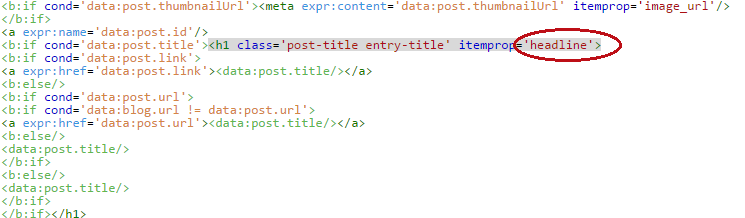
    Step 4: Change 'name' to 'headline' in the code  as shown in below image:

    how-to-fix-headline-missing and required-in-blogger-structured-data-to-esting-tool

    You will find the above code two times or more then two times, make sure to change 'name' to 'headline' in all of these codes.

    Step 5: Save your template and test your blog again using Structured Data Testing Tool.

    How To Fix "datepublished: missing and required" In Blogger:


    If you do it manually it will need hard work and it would be difficult for you so I found an alternative method to fix this error which is much easier then other methods. So follow below steps to fix 'datepublished: missing and required' in your blog.

    Step 1: Go to blogger dashboard > settings and select sub-option(Language and formatting):


    how-to-fix-datepublished-missing-and-required-in-blogger-structured-data-to-esting-tool

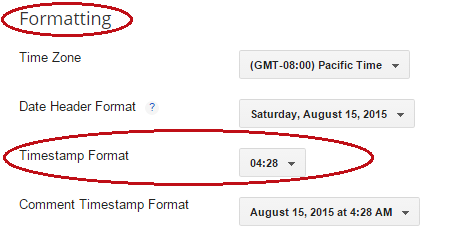
    Step 2: Find Formatting and Timestamp Format.


    Step 3: Change time format from default to 8/15/2015 04:33:50 AM(Month/Date/Year Time AM) format as show in below image:


    how-to-fix-structured-data-tool-errors-in-blogger

    Step 4: Click on save settings and go to layout.


    blogger-step-by-step-help-tutorials

    Step 5: On the layout page edit blog posts.


    how-to-edit-blog-posts-in-blogger-101helper

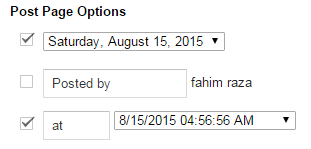
    Step 6: Check/Mark both date and time options in post page options as shown in below picture:


    how-to-change-date-and-time-settings-in-blogger

    Step 7: Change time format to 8/15/2015 04:33:50 AM(Month/Date/Year Time AM) as you did in the settings above(step 3).


    how-to-change-date-and-time-settings-in-blogger-101helper

    It should be like above image.

    Step 8: Click on save and you are done.

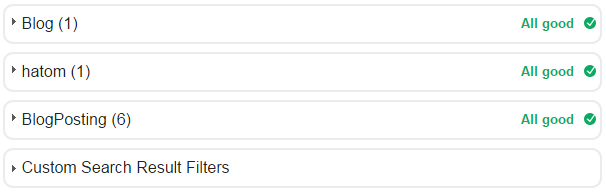
    Once again check your blog with Structured Data Testing Tool, I am sure this time you will see All good!

    If you still have errors in your webmaster testing tools then you have to do all this manually so follow below steps to add codes manually.


    Method 2:Fixing "headline and datepublished missing and required" in blogger Manually!

    Step 1: Go to your template and edit it.

    Step 2: Search for below code:

    <div class='date-posts'><div class='post-outer'><div class='post hentry uncustomized-post-template' itemscope='itemscope' itemtype='http://schema.org/BlogPosting'>

    Step 3: Copy below code and paste it below the above code:

    <a class='timestamp-link' expr:href='data:post.url' rel='bookmark' title='permanent link'><abbr class='published' expr:title='data:post.timestampISO8601' itemprop='datePublished'><span class='updated'><data:post.dateHeader/>T<data:post.timestamp/></span></abbr></a>

    Step 4: Now search for this code:

    <div class='post hentry' itemprop='blogPost' itemscope='itemscope' itemtype='http://schema.org/BlogPosting'>

    Step 5: After finding above code just below it paste this one:

    <a class='timestamp-link' expr:href='data:post.url' rel='bookmark' title='permanent link'><abbr class='published' expr:title='data:post.timestampISO8601' itemprop='datePublished'><span class='updated'><data:post.dateHeader/>T<data:post.timestamp/></span></abbr></a>

    Step 6: Now search again for the below code:

    <meta expr:content='data:post.canonicalUrl' itemprop='url'/>

    You may find this code 2 or 3 times

    Step 7: Add the below code below each of the above codes(step 6):

    <a class='timestamp-link' expr:href='data:post.url' rel='bookmark' title='permanent link'><abbr class='published' expr:title='data:post.timestampISO8601' itemprop='datePublished'><span class='updated'><data:post.timestamp/></span></abbr></a>

    Step 8: Click on save and you done!

    Important Note: Make sure to follow step 5,6 and 7 in the first method of fixing these errors!

    If your blog have other errors like img_url, postid, blogid then read How To Fix Google Webmaster Tools Errors In Blogger 


    If you still see any problem you can discuss it with me in comments or by contacting me.

    If this post helped you then please take a second to share it with others. Follow ans subscribe for latest posts updates. Keep visiting 101Helper :)

    Search Tags: How to fix Structured data tools errors in blogger,blogid,postid,headline,image_url,datepublished error fixing tutorial for blogger,Google webmaster tools tutorials for blogger 101helper.blogspot.com
    Read more

    Senin, 23 Maret 2015

    How To Enable Auto-complete In Google Custom Search Box

    how to add suggestions to Google search | 101helper

    Google webmaster tools has a very useful feature for blogger and webmaster that it lets us to create a custom search engine and add it in or blog or site, but as Google search has an auto-complete feature why our search engines aren't auto-completing our search? well! Google has enabled us to allow or disallow auto-complete in our search engines but most of us either don't know about Google search auto-complete option or are not aware of how it works and how to enable it. So this post is dedicated to those who want to enable auto-complete in their search engines. 

    Related posts about Google Webmaster Tools.

    To see a live demo of auto-complete, click on the above search box and type an alphabet.


    Whats the reason for enabling auto-complete?


    Its a very good question and the answer for it is there are two reasons for enabling auto-complete in Google search engine.


    (1). It helps visitors to find it quickly what they are looking for.

    (2). It helps you to promote your posts which you want to get more views.

    How to enable auto-complete in Google search engine? 


    Enabling auto-complete is much easier than you think but the major work starts after enabling the auto-complete, how? read more to know. To enable aut-complete in your search engine follow below steps:


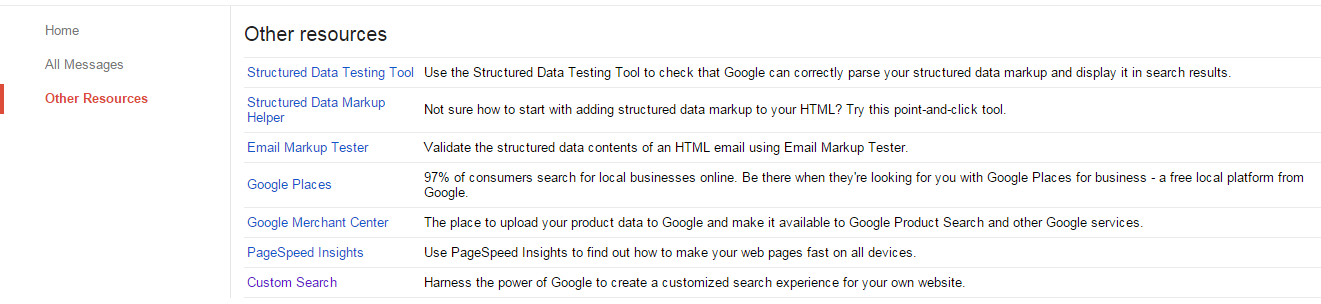
    Step 1: Go to Google webmaster tools > Other Resources > Custom Search.


    Step 2: Edit your search engine and click on search preferences.


    How to enable auto-complete in Google search engine | 101helper

    Step 3: Click on auto complete and on the same page switch on auto-complete


    enabling auto-complete in Google search engine | 101helper

    Congratulations! you have successfully enabled auto-complete in your search engine but still you won't see any auto-complete suggestions as you have to set suggestions first. That's why I told you above that the major work starts after enabling the auto-complete in your search engine. Search engine suggestions can be added in two ways, one is to add suggestions one by one and another is to upload an xml file which contains titles of your posts. In this post I will show you both methods of adding suggestions to your search engine. Its a hard working thing but you have to do it to see auto-complete suggestions. 

    Adding auto-complete suggestions one by one:

    One method of adding suggestions to Google custom search engine is doing it one by one, so I am discussing it first. Follow below steps to add auto-complete suggestions one by one to your custom search engine.

    Step 1:  Go to Google Webmaster Tools > Other resources > Custom search > Search preferences.

    Step 2: Click on auto-complete and below find Custom Autocompletions, now find included.

    Search box with auto-complete for blogger | 101helper

    Step 3: Click on Add(it will open a pop-up). 

    Step 4: In the above field type your suggestion and leave the below one blank.

    Search box with auto-complete for blogger | 101helper blogger

    Step 5: Click on ok and you and done!

    Adding auto-complete suggestions at once:

    To add suggestions at once, go to Google Webmaster Tools > Other resources > Custom Search > Edit Search Engine > Search Preferences > Auto-complete and at the end of the page click on upload/download XML. Upload your blog's XML file which contains all posts and you are done.

    How to get XML file of your blog? Read this post for instance.

    That's it. I hope you enjoyed this post and it helped you out. Follow and subscribe to get latest tutorial updates about Google webmaster tools. Share this post with others because sharing is caring. Keep visiting 101Helper.

    Search Tags: How to enable auto-complete in Google custom search, Search box with auto complete, Auto complete search box gadget for blogger, Search suggestions gadget, Increase page-views of posts in blogger, 101Helper Google webmaster tools tutorials for blogger.
    Read more

    Kamis, 19 Maret 2015

    How To Setup Google Custom Search Box In Two Pages In Blogger

    How to setup Google custom search box in two pages in blogger | 101helper

    Do you use Google webmaster tools? if yes then I am sure that you are aware of Google custom search engine. Google custom search engine is a feature of Google webmaster tools which lets you to create a custom search engine for your blog or site and you can add it your blog also. It works on javascript and doesn't need any experience in Html or java. All you need is to setup search engine for your blog. You can read a post in which I have shared some search box where I have mentioned Google custom search engine too. You can read that post and create a custom search engine for your blog by following it, if you haven't setup a search engine yet. Click here to read that post. In this post I will tell you how to add Google custom search in blogger(two pages). If you didn't get me that what am I talking about then read below paragraph.

    What is this article about?

    This post is about adding Google custom search in blogger in two pages. Let me explain it more accurately. Google provides custom search engine in 7 different styles i.e a search box whose search results are shown on the same page, a search box which shows results in a Google page, a search box which shows search results only etc. For better explanation see the below image:


    How to add google custom search box in two pages | 101helper

    For instance read about every type of the above search results below:

    Overlay: By selecting this option you will see the search results in an overlay.

    Two page: This option lets you to add search box in one pages and show the results in other page.

    Full width: This option lets you to add search box and results both in one single column.

    Two column: Two column refers to the idea of search box in one area of the page and results in other area.

    Compact: Like its name, this option shows results and search box both in compact form.

    Results only: By selecting this option you will use your own search box and show results on a page of you blog.

    Google Hosted: This option allows you to add search box in your blog but the results will be shown in a Google hosted page.

    Whats the reason for adding Search box to two pages of my blog?

    Well, you can use anyone of the above styles shown above but a solid reason for using search box in your blog page(Two page) is it increases your page views and hence decrease your bounce rate. Another reason for using this style is to show a search box in Google search results.

    How do I add search box to my blog pages(two page):

    Using custom search engine in two pages of your blog is not a problem at all, but as a beginner its complicated to use this search box in such a useful way as Google hasn't made it easy. But don't worry you can add this search box in your blog two pages by following below mentioned steps. 

    First of all we have to set an action page so we need a page link where you would like to see search results so first create a page named "search results" and publish it just like I have created a search page you can see it here, now after creating page copy the url of that page and follow below steps:

    Step 1: Go to Google webmaster tools, click on other resources and choose custom search.

    Google webmaster tools tutorials | 101helper

    Step 2: Click on search edit search engine and choose your search engine. If you haven't created a search engine yet then create a search engine and after that follow this post.

    Google webmaster tools tutorials for blogger | 101helper

    Step 3: Click on look and feel and choose Two page.

    Google webmaster tools for blogger | 101helper

    Step 4: Click on Save & Get Code(it will take you to a new page).

    Step 5: On the code page before copying the code you have to set an action page where your search results will be shown so click on Search results details above the search box code.

    Google custom search engine tutorials for blogger | 101helper

    Step 6: Paste the url of the search page in above space and below it type q just like I've done in the above image.

    Step 7: Click on save(the page will be reloaded).

    Step 8: Now copy the code and go to blogger dashboard > layout > add a gadget > Html/javascript > paste the code and click on save.

    Step 9: Now you are almost done after a few steps. So now click on Next: Get code for search results:

    Google custom search engine for blogger | 101helper

    Step 10: Copy the code(code for search results).

    Google custom search box Two pages

    Step 11: Go to the page(search results), edit it switch to Html tab and paste the copied code.

    Step 12: Publish the page and open your blog to test your search box.

    I hope you like this post and it helped you. If you have any problem related to this post ask me in comments. Follow and subscribe to get latest updates about Google webmaster tools tutorials. Share this post with others and help me spread my blog.

    Search tags: Search box, how to add search box in two pages, Google custom search box Two pages,How to steup Google custom search engine in blogger page, Google custom search box full tutorials, Google webmaster tools tutorials for blogger 101Helper.
    Read more

    Jumat, 13 Maret 2015

    How To Fix "blogid,postid,image_url,updated" Errors In Blogger

    How to fix Google webmaster tools errors in blogger | 101helper

    Do you have alot of error in your Google webmaster tools structured data? if yes and you are seeking for how to fix Google webmaster tools errors like Missing required field "updated", image_url, blogid, postid etc then you are at right place. These errors can be easily remove in just a few simple steps. These errors harms the performance of your blog therefore these should be removed immediately. This tutorial is only for blogger so if you are a site owner then I am not sure about if it would work in your site or no. In this article I will show you to how can you remove errors from your Google webmaster tools structured data. So lets get started! follow below steps to remove errors from your blog's structured data.

    Step 1: Go to Google webmaster tools and open your site.

    Step 2: Click on search appearance in the menu on left side and choose structured data.


    Google webmaster tools tutorials for blogger

    Step 3: Click on the error and choose the post which is appearing to have error and click on test live data, it will show you the errors which I am going to fix in below steps.

    Step 4: Copy the piece of code which is appearing as error and go to blogger template and click on Edit Html.

    I am going to fix each error one by one so after following step four follow each step to remove each error.

    Error no. 1(Fixing Missing required field "updated"):

    Step 1: In the template click anywhere and search for <data:post.timestamp/> by using Ctrl+f.


    Fixing Missing required field "updated"

    Step 2: Replace it with <span class='updated'><data:post.timestamp/></span>


    Fixing Missing required field "updated" google webmaster tools

    Step 3: Go to structured data testing tool to check if the error is fixed or not.

    Error no. 2(Fixing Image_url Error):

    Step 1: Find  <meta expr:content='data:post.firstImageUrl' itemprop='image_url'/> by using Ctrl+F in the template code.


    Fixing Image_url Error google webmaster tools

    Step 2: Replace it with <meta expr:content='data:post.firstImageUrl' itemprop='image'/>.


    Fix Image_url Error google webmaster tools

    You will find this code two times in your template, make sure to replace both of them with the error free code.

    Error no. 3(Fixing Blogid & Postid Errors):

    Step 1: Search for <meta expr:content='data:blog.blogId' itemprop='blogId'/> and <meta expr:content='data:post.id' itemprop='postId'/>.


    Fixing Blogid & Postid Errors in google webmaster tools

    Step 2: Delete both of them from your blog template.

    You will find the above codes two times in your template, make sure to delete both of them.

    Step 5: Click on save template and you are done. 


    How to save template in blogger

    Note: After following above steps text your posts with structured data tool, if you still find any of the error in your structured data then find all these codes and delete them from your template.

    If you have any problem related to this post ask me in comments. Follow and subscribe to get latest updates about blogger seo and Google webmaster tools. Share this post with and others.

    Search tags:  How to fix Google webmaster tools errors in blogger, blogid error fix, post id error fix, image_url error in Google webmaster tools, updated error in google webmaster tools, how to fix google webmaster tools errors, 101helper tutorials for Google webmaster tools.
    Read more